HelpAccount
Notifications
The bell in the dashboard: what needs you, like a paused campaign, and news, like a finished import.
The bell
The bell in the sidebar, in a section of its own under Domains and API keys, or at the top of the screen on a phone, shows what happened in your account. Its red badge counts the new ones. Opening it marks what it shows as read, so the badge goes away, and the new ones stay highlighted until you close it. Clear all, at its top, empties it.
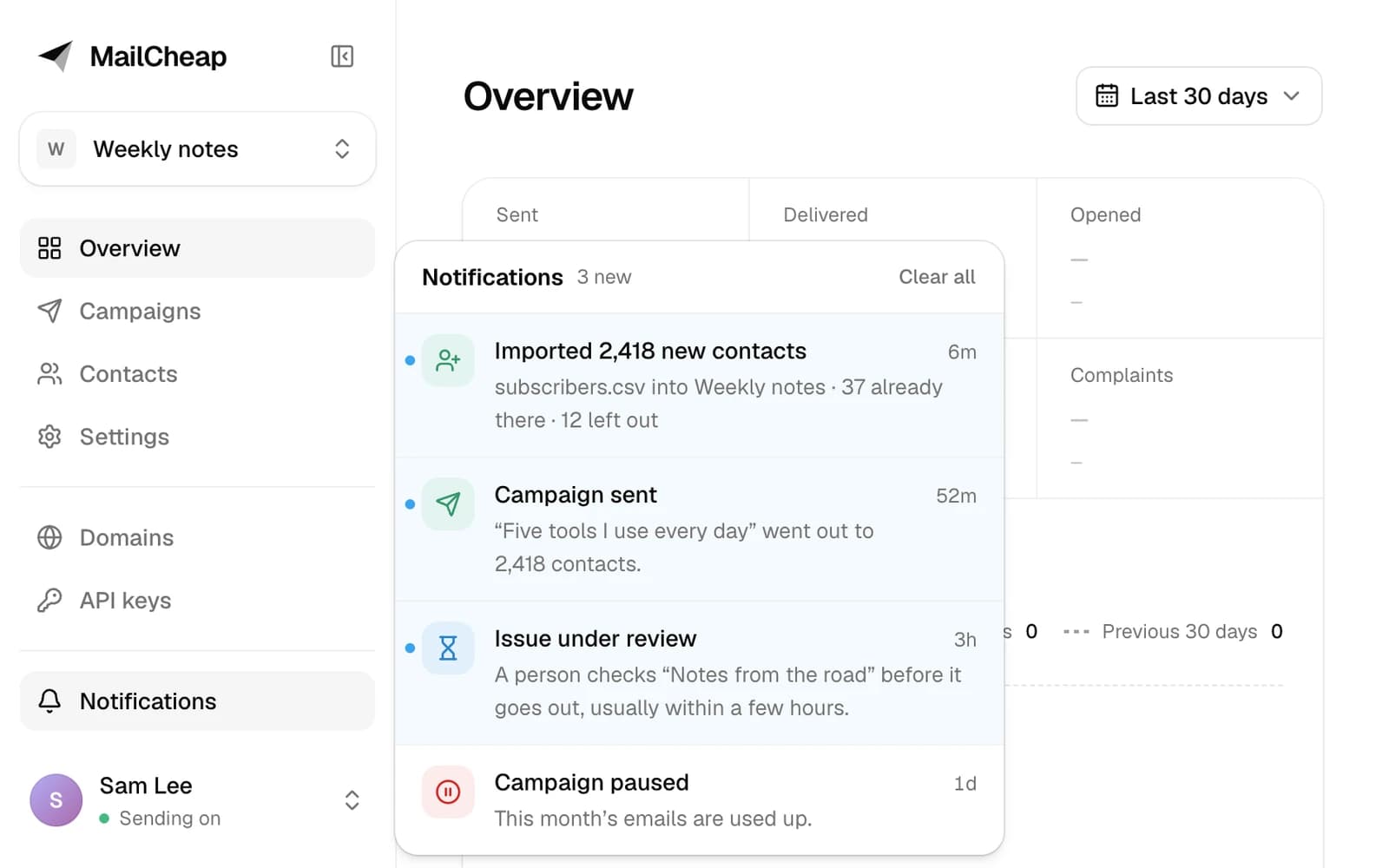
Click one to open the page it's about: the campaign that paused or was sent, the Contacts page of the newsletter an import went to, or the Domains page for a domain to fix. When the same thing happens again, like a second spam complaint, its notification comes back on top as new instead of adding another, even after you cleared it. Notifications stay 90 days.
What shows there
- What needs you, which MailCheap emails you too: a campaign that paused, your account blocked, a domain that stopped sending, bounces or complaints getting high, a spam complaint, signups paused after a flood, a scheduled send that didn't start, and an issue or a signup email that can't be sent.
- News, in the dashboard only: a campaign sent to everyone on its list, an issue under review and then approved, and an import as it starts, then how it went: what it added, what was already there and what it left out, or why it stopped.
Emails
What needs you also goes to your account's email address, so you hear of it away from the dashboard. Its email links to the same page as its notification.
From the API and AI assistants
List notifications returns the same notifications, with the page each one is about. mark_notifications_read marks them read, as opening the bell does, and clear_notifications clears them, as Clear all does. An AI assistant connected to MailCheap can tell you what needs you. API and AI assistants